
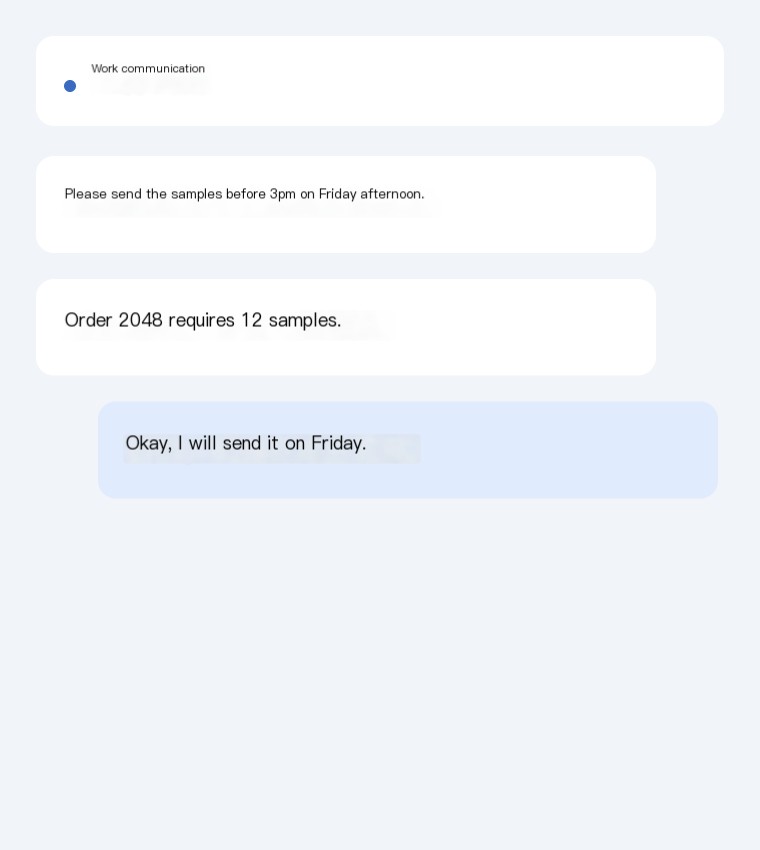
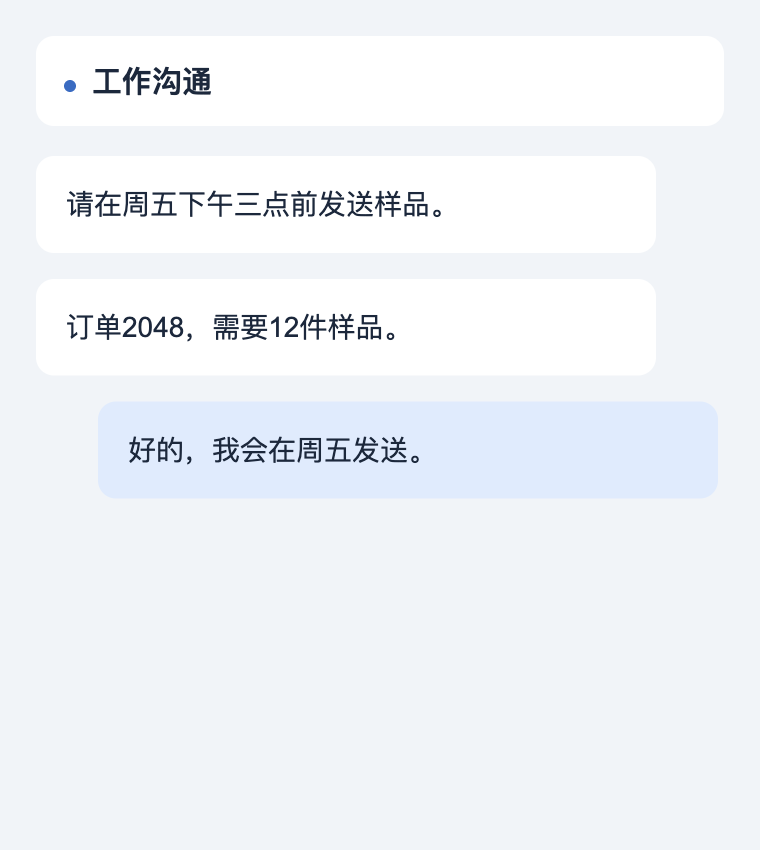
Read it in place
See translated text on the image rather than rebuilding a conversation from a separate text box. Open the full-size result when you want a closer look at the wording or surrounding visual context.
Chats & screenshots
Use the screenshot translator without retyping text. Paste a chat or app screen, read the translated image and copy the words you need.
Your next read. Your next conversation. Your language.
Your translation workspace
Use your available credits to try a translation. Sign in to see your balance. One standard image translation uses one credit.
Chats & screenshots
Bring a work conversation, a shared announcement or an unfamiliar app screen into your language. Paste a screenshot directly into the page or upload several images. Our screenshot image translator gives you both a translated picture and recognized text, so you can read the conversation in place or copy the words into your next reply. Check names, dates and quantities in the result, make a quick text correction when needed and keep the useful part of the conversation moving.
See translated text on the image rather than rebuilding a conversation from a separate text box. Open the full-size result when you want a closer look at the wording or surrounding visual context.
Compare the original and translation, copy recognized text and adjust a translated phrase. Download a locally edited image when a quick correction helps; the editor uses white text boxes and leaves the standard result available.
Save a single translated image or download completed batch results as a ZIP. Choose a screenshot for a quick message, a reader for a chapter or a batch for a larger collection.
THREE STEPS, ONE LESS LANGUAGE BARRIER
Paste an image from your clipboard into the page, or upload screenshots from your device. You can add several for one conversation.
Choose the language you want to read and translate a screenshot. Use the translated picture to keep the surrounding interface or conversation in view.
Copy the recognized translation for your reply or notes. Adjust a phrase in the local editor and download the image when you want to keep it.
A CHAPTER TODAY. A HABIT TOMORROW.
Try a translation with your available credits before choosing a larger purchase. A standard image translation uses one credit. One-time packs suit a folder, a chapter or an occasional project, while subscriptions suit people who translate images regularly. The image translator uses the same standard engine across these plans: choose by the volume and billing arrangement that fit your work. Visit pricing for current amounts, included credits and subscription periods.
Yes. Copy an image and paste it into the upload area or the page outside a text input. You can also choose image files on your phone. Pasting text inside an editor continues to work normally.
Upload the picture or paste a screenshot, select a target language and start translation. The tool recognizes the image text for you. Clear, readable text gives the service a better starting point than small or blurred lettering.
Yes. Open the recognized text or translation editor after a result completes. You can copy the wording, change a phrase and export an edited image using white text boxes. Your standard translated result remains available separately.
Images and their text are sent to the services needed to process your translation. Use images you have permission to upload, and see the privacy policy for processing, retention and deletion requests.
PrivacyUse the screenshot translator without retyping text. Paste a chat or app screen, read the translated image and copy the words you need.